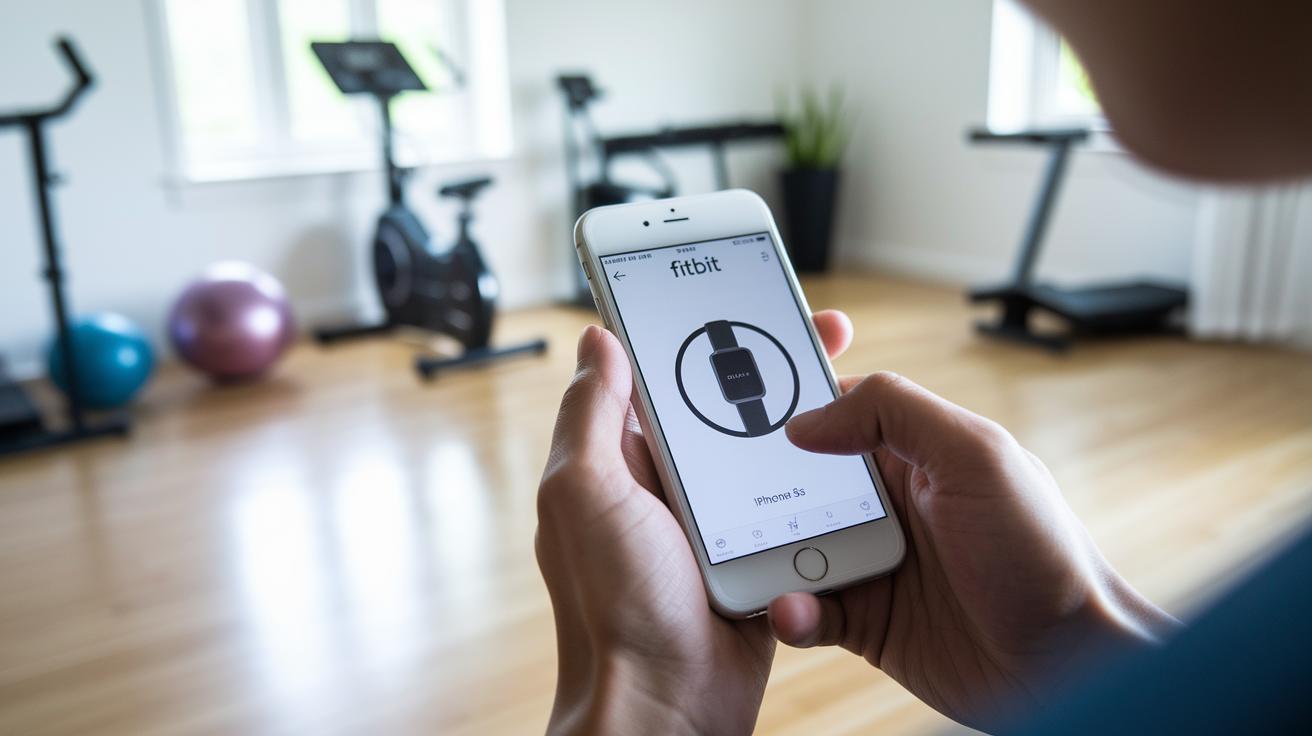

Ever wonder if your Fitbit app could do more than just count your steps? Imagine it turning into a handy sidekick that makes your day a little smoother. In this guide, we break down how to unlock hidden features that fit right into your daily routine.
Once you link your Amazon account, you get instant voice control for quick smart home tweaks, commands that work almost like a personal assistant at your beck and call. You can tap into music controls, dive into detailed activity stats, and even check your heart rate in real time. It’s like having a tech-savvy friend who’s always ready to help.
Curious about how these simple upgrades can make tracking and smart adjustments feel effortless? Let’s explore all the neat hacks that make your everyday routine smarter and more connected.
Fitbit App Complete Walkthrough: Setup, Navigation, and Core Features
Getting started with the Fitbit app is a breeze, just download it from the Apple App Store or Google Play. During setup, you’ll link your Amazon account through the profile menu. This clever step activates Alexa voice commands, making it super simple to set alarms, check the weather, or even control smart home devices. Pretty neat, right?
- Voice commands via Alexa: Once you connect your Amazon credentials in the profile, you can talk your way through device settings and smart home controls, just like having a personal assistant at your beck and call.
- Music control (Spotify, Pandora, personal songs): If you’re rocking a Spotify Premium account, you can easily switch playlists, control playback, and even manage your own stored songs. Plus, playlists from Pandora or Deezer flow in seamlessly.
- Always-on AMOLED display: Enjoy a vivid, crisp screen that keeps you updated with the time, your stats, and workout progress without ever needing to tap or swipe.
- Activity and calorie stats on dashboard: Need a quick glance at your day? Just swipe up from the clock face to see a dashboard that lays out your daily activity and calorie burn in clear detail.
- 24/7 heart rate monitoring: With continuous tracking, you get real-time insights into your heart rate whether you’re on a workout spree or just going about your daily routine.
- Fitbit Pay integration: Setting up mobile payments is straightforward, simply add your credit card details in the app to make contactless transactions at retailers and transit systems hassle-free.
- Android quick-reply notifications: Android users, you’re covered too. Enjoy the convenience of quick text replies using voice-to-text or pre-populated messages up to 60 characters when notifications roll in.
The always-on AMOLED screen isn’t just a pretty display, it offers clear visuals that make viewing time, stats, and daily insights effortless. And with an intuitive dashboard featuring Reminders to Move and a real-time look at device battery life, managing your health has never been this engaging or user-friendly.
Fitbit App Guide: Step-by-Step Device Pairing and Initial Setup

First, launch the app and sign in or set up a new account, don’t forget to grant the necessary permissions. Imagine scrolling through a few simple screens and suddenly you’re ready to monitor your health, just like the anticipation before a morning jog. It really is straightforward, letting you zero in on your well-being without any fuss.
Next, tap the profile icon and hit “Set Up a Device.” Choose your model and follow the prompts on your screen, it's a bit like selecting your favorite tune from a playlist. Just make sure your phone’s Bluetooth and location services are turned on; think of it as giving your device a friendly nudge to get working with you.
Once your device is paired, you can also connect your Amazon account for Alexa access. Just select your device under your profile, pop in your credentials, and you’re good to go. Finally, head over to Settings > About Device to check for any firmware updates. This last step is key to enjoying the latest features and smooth performance right from your wrist.
Fitbit App Guide: Interpreting Activity and Health Metrics
When you fire up the Fitbit app, you're immediately greeted with a dashboard that packs a lot of health insights in one neat view. You'll see details like your step count, calorie burn, and resting heart rate front and center. Plus, the app uses its smart PurePulse® technology to monitor your heart rate continuously, breaking down your workout into zones like Fat Burn, Cardio, and Peak. It's a clean, straightforward setup that lets you catch daily, weekly, or monthly trends in just a glance.
| Metric Name | What It Means | Where to Find |
|---|---|---|
| Heart Rate Zone | Shows your effort levels during exercise | Dashboard under workout details |
| Calorie Burn | Estimates the energy you’ve burned based on your activity and profile | Activity stats tile |
| Step Count | Total steps taken each day | Main dashboard |
| Active Zone Minutes | Minutes spent in higher intensity exercise zones | Daily summary screen |
Reviewing these metrics over time makes it really easy to spot trends. By comparing your daily details or looking at weekly changes, you get a clear picture of how tweaks in your routine can boost your overall fitness. This kind of ongoing feedback is awesome for fine-tuning your workouts and tracking your progress, helping you stay on track with your health goals.
Fitbit App Guide: Logging Workouts and Reviewing Performance

Tracking your workouts with the Fitbit app is a breeze and truly satisfying. With over 15 exercise modes, whether you're biking, running, lifting weights, or practicing yoga, the app fits every routine effortlessly. Just like setting off on that empowering jog where every heartbeat fuels your progress, the app begins recording your zone minutes, calorie count, and heart rate the moment you hit Start.
Starting a Workout in the App
Getting started is as easy as tapping the clear Exercise tile on your home screen. Once you pick your workout style, you'll see settings that allow you to tweak your session goals. It’s a bit like selecting your favorite track before a run, they give you that perfect burst of motivation. You can quickly review and adjust your settings so you know every bit of your performance is captured accurately.
Reviewing Workout Details
After you finish your workout, the app gives you a detailed recap of the session. You'll see things like total duration and, if you have GPS on, the distance covered. A clear heart rate graph and a breakdown of your zone minutes let you visualize every pace and step you took. Plus, little on-screen celebrations make the experience fun, rewarding you for every bit of progress you make.
Fitbit App Guide: Sleep Tracking, Sleep Score, and Insights
Ever wondered how your sleep patterns really play out each night? The Fitbit app keeps an eye on your heart rate around the clock, breaking your sleep down into light, deep, and REM stages. This not only gives you a clear picture of how you rested, but it also lets you see how each stage contributes to your overall sleep quality. Plus, Sleep Mode automatically quiets your notifications and dims your screen, so nothing gets in the way of a good night's sleep.
Your overall Sleep Score acts like a health snapshot of your night's rest. It takes into account things like your heart rate trends, bouts of restlessness, how much time you spend awake, and the time spent in each sleep stage. If you find that you're waking up frequently or missing out on deep sleep, the score might drop, indicating that a few adjustments in your nighttime routine could make a real difference.
Beyond just scoring your sleep, the Fitbit app also offers a clear look at your sleep trends over time. It presents both daily insights and weekly averages, making it easier to spot recurring patterns or improvements. Whether you notice a trend of light sleep or an increase in REM duration, these insights help you tweak your bedtime habits and gradually enhance the quality of your sleep.
Fitbit App Guide: Customization, Notifications, and Account Settings
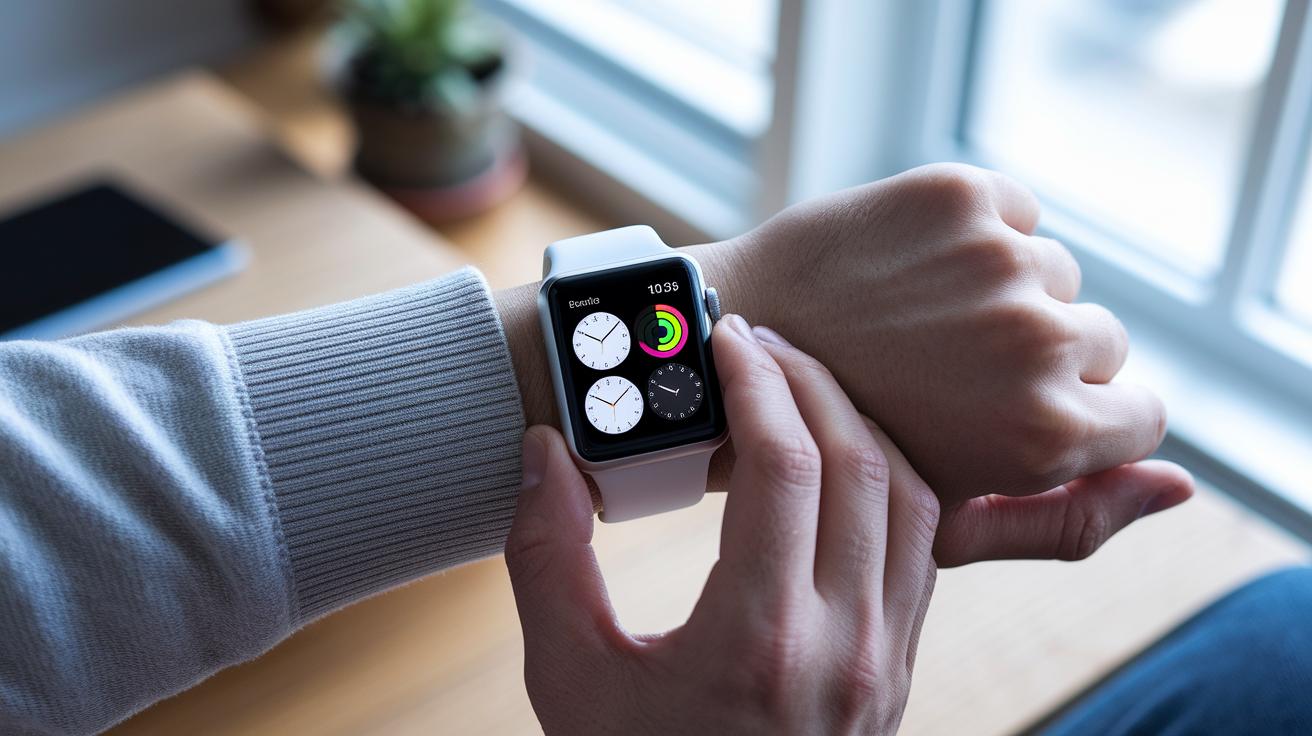
Customize your app experience by heading to Today > Customize. There, you can easily tweak clock faces and dashboard tiles to reflect your style. It’s a fun way to highlight the info that matters most, like your activity stats or quick links to your favorite apps. Ever notice how a bold clock face can give your daily goals an extra boost?
When it’s time to manage notifications, Fitbit keeps things low-key. In the Notifications settings, you can set up features like Reminders to Move and opt for silent alarms, so you get your progress updates without intrusive sounds. And if you use Android, enjoy handy extras like quick replies and voice-to-text in the Messages area, making it a breeze to stay connected on the go.
Setting up Fitbit Pay is a snap, too. Just enter your card details in the Wallet & Apple Wallet section, and you’re set for hassle-free transactions. Whether you’re at a store or hopping on transit, you get all the convenience of digital payments without needing to carry your physical wallet.
Changing your accessory band is just as effortless. Simply slide out the pin on the back of the band and reattach your new choice at a slight angle for a secure fit. This quick swap means you can update your look whenever inspiration strikes, keeping your style as fresh as your data.
Fitbit App Guide: Troubleshooting, Firmware Updates, and Support
Sometimes your device might act up, maybe it refuses to update or shows delayed data. When that happens, try turning Bluetooth off and back on or force-closing the app to refresh things. Also, don’t forget to check for firmware updates by navigating to Settings > About Device in the Fitbit app. Keeping your device clean and giving your wrist a break now and then helps PurePulse technology deliver those spot-on heart rate readings.
Resetting Your Fitbit Device
If your Fitbit ever seems unresponsive or you suddenly see a blank screen, a hard reset can often do the trick. Just press and hold the button for about 8 seconds until the Fitbit logo pops up. This simple method is great when you’re facing persistent sync issues or little glitches that slow things down. In short, a hard reset is your go-to move for getting your device back into top shape.
Contacting Fitbit Support
If basic troubleshooting hasn’t solved your issue, the in-app support is worth a shot. Open the app, head to Help > Help & Support, and skim through the FAQs or even submit a support ticket if you need extra guidance. Their support center covers everything from firmware updates to sync problems, so you’re never really on your own when those tech troubles rear their head.
Final Words
In the action, this article walked you through everything from app setup to mastering health metrics, workout logging, and troubleshooting. We broke out key features like voice commands, music control, sleep tracking, and quick notifications in bite-sized chunks. Our fitbit app guide shows that smart design can make everyday tech feel effortless. Enjoy exploring your device and making tech a part of your smarter lifestyle.
FAQ
Q: What does the Fitbit app guide cover for Versa 3 and Versa 4 models?
A: The Fitbit app guide for these Versa models explains device setup, navigation, and key functions like fitness tracking and notifications, helping you maximize your gadget’s performance in everyday use.
Q: Are there Fitbit app guides available for both Android and iPhone, and is the app free?
A: The Fitbit app is free and available for both Android and iPhone, offering comprehensive guides and installation instructions that make it easy to get started on your preferred device.
Q: Why are some Fitbit devices being discontinued?
A: Some Fitbit models are phased out as the company refines its lineup, shifting focus to updated designs and the latest technology to provide improved features and overall performance.
Q: How do I operate my Fitbit?
A: Operating your Fitbit involves pairing it with the app, navigating an intuitive dashboard to check your health stats, and using on-screen icons for workouts and activity tracking in a straightforward way.
Q: What do all the symbols on Fitbit mean?
A: The symbols on your Fitbit represent metrics such as step counts, heart rate, notifications, and battery status, each serving as a quick visual cue to help you monitor your daily progress.
Q: How do I get my Fitbit back to the home screen?
A: You can return to the Fitbit home screen by swiping up from the dashboard or tapping the home icon, allowing you to quickly access daily stats and navigate the main features.